01
Two-way text clipboard
Links, codes and short notes. Sync plain text both ways and keep using the copy-and-paste shortcuts you already know.

macOS × Xiaomi HyperOS
Copy on your Mac, paste on your Xiaomi phone—and bring text back the other way. File sharing, screenshots and annotations, all in your menu bar.
Free to use · Apple Silicon / Intel · No extra phone app
Less switching. More doing.
01
Links, codes and short notes. Sync plain text both ways and keep using the copy-and-paste shortcuts you already know.
02
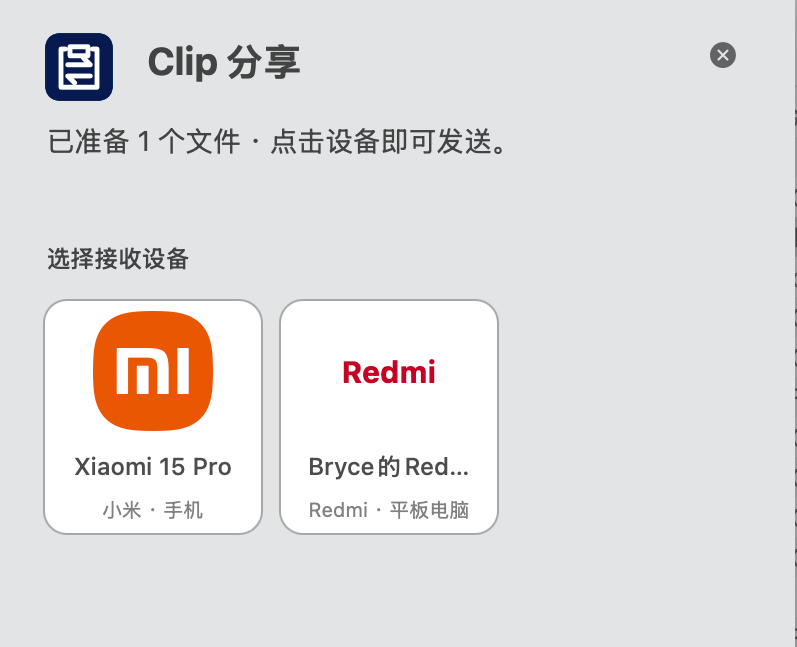
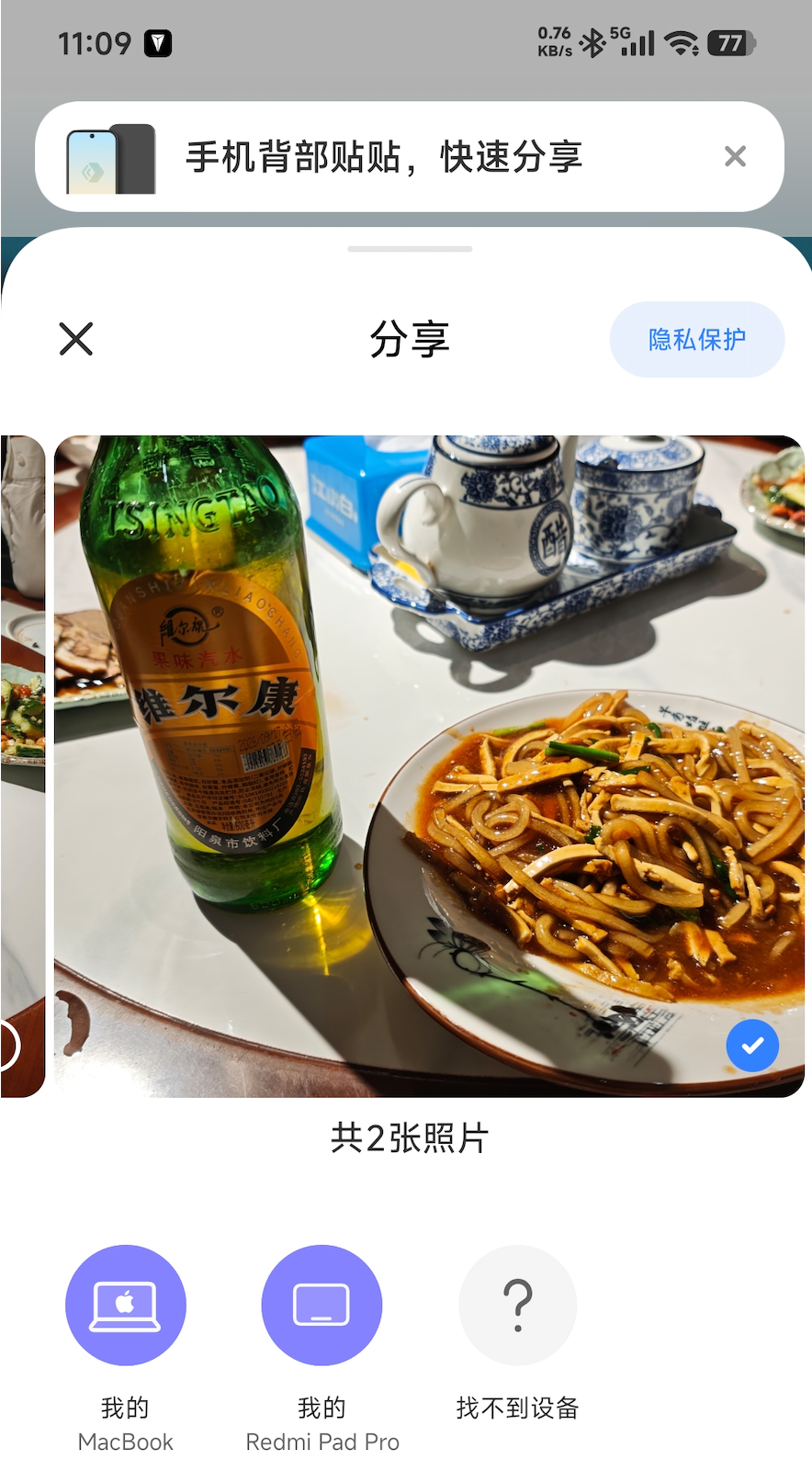
Select files in Finder, choose Clip 分享 from the Share menu, then click a device. Send files back from your phone’s system share sheet.
03
Select a region, draw boxes, add text or redact details. Capture scrolling content, then copy a PNG for compatible apps on your phone.
Capture / Annotate / Share
Press ⌃ Control + ⌘ Command + A to capture. Move or resize the selection; the tools stay right beside it.
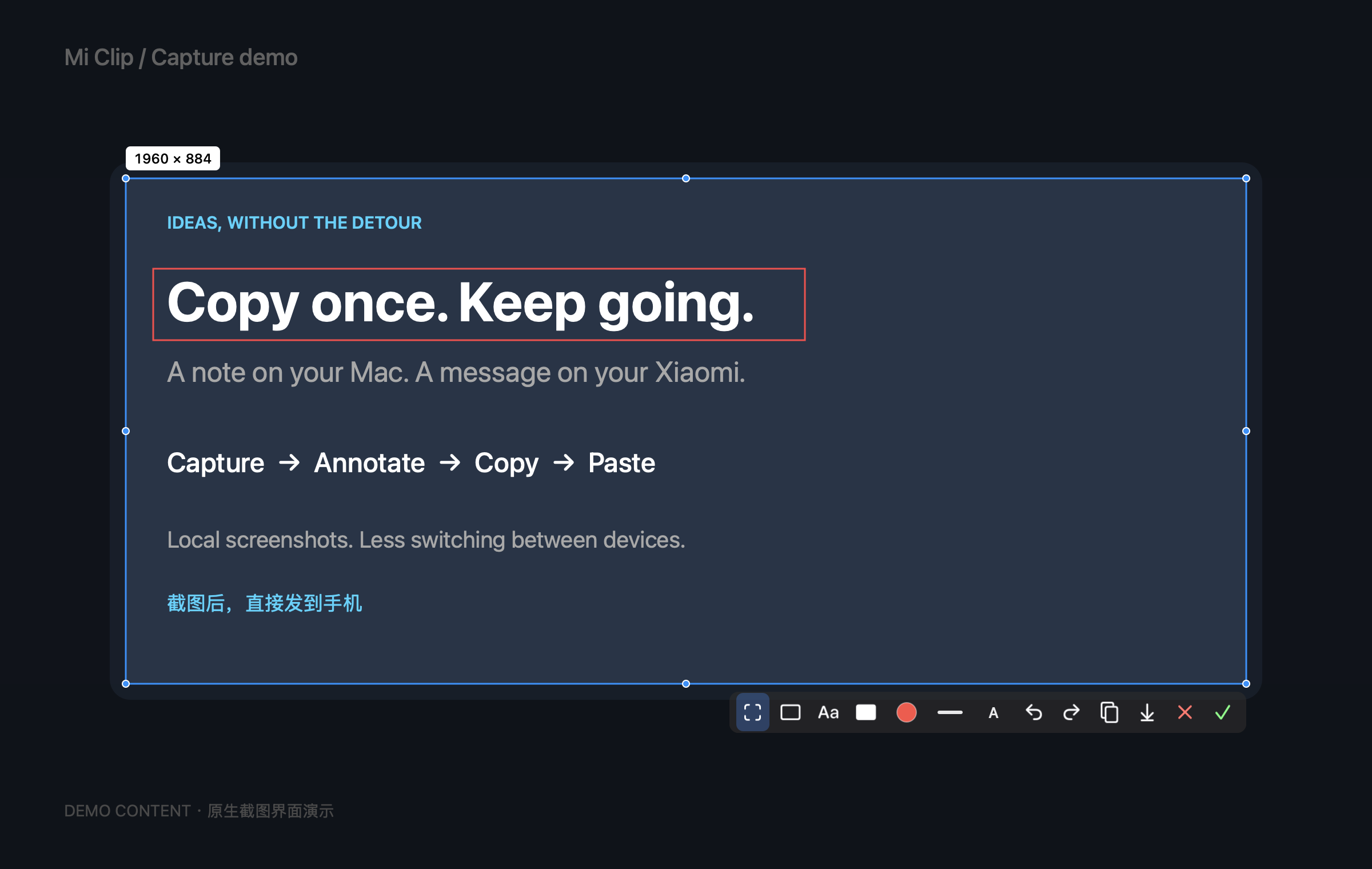
Rectangles, multiline text and opaque redaction, with adjustable colors, stroke widths and text sizes. Undo and redo included.
Start scrolling capture, then scroll slowly in the original app. Pauses trigger stitching; uncertain matches keep the existing capture and show a hint.
Copy a PNG into the image-sync workflow, or save a PNG without changing the clipboard. macOS screen-recording permission is required for capture.
Small app. Familiar workflow.
Skip the chat window just to send yourself a sentence.
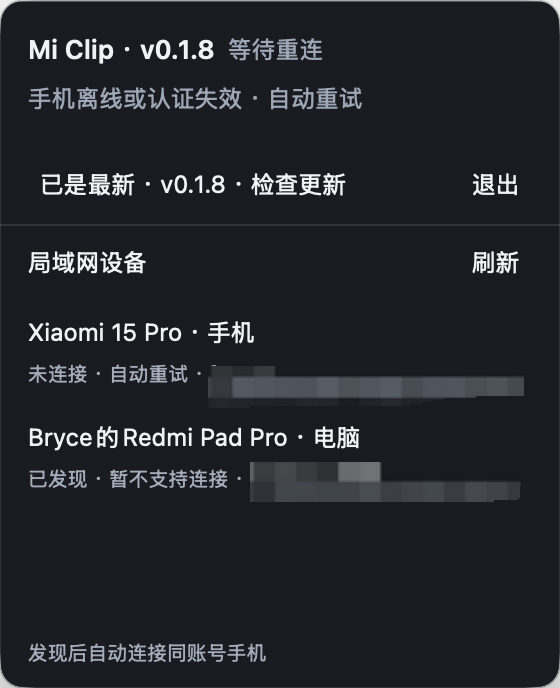
Use the same local network, enable phone interconnectivity and connect with the same Xiaomi account. Mi Clip discovers devices automatically and retries when a connection drops.
To send a file to your Mac, look for “Clip” in the phone’s system share sheet. Received files go to Downloads; existing files are never overwritten.
Ready when you are.
Choose your Mac’s chip. Download the ZIP, move Clip.app to Applications, then open it and follow the account authorization prompts.
Not sure? Open → About This Mac and look for Chip or Processor. You can check for updates inside the app.
macOS may show a security prompt on first launch. Current builds are not Apple Developer ID notarized. Download only from this project’s official releases and review the source in System Settings.
Release notes and all downloads →Two-way text, file receiving and selected image transfers have been verified on an Intel Mac and one Xiaomi phone running HyperOS 3. Apple Silicon builds are available. Other systems, models and tablets still need real-device validation; discovery alone does not guarantee feature compatibility.
No extra phone app is needed. Use the phone’s built-in interconnectivity features, keep both devices on the same local network and authorize the connection with the same Xiaomi account.
Plain UTF-8 text syncs both ways, up to 3,072 bytes per update. Images and regular files copied on the Mac can be fetched by compatible phone apps. Automatically bringing phone-copied images or files into the Mac clipboard, rich text and folders are not supported.
Clipboard and file contents travel between devices on the local network; screenshots are processed on the Mac. Account authorization requires internet access. Release builds send anonymous usage events without clipboard text, filenames or device addresses. Set MICLIP_NO_ANALYTICS=1 or DO_NOT_TRACK=1 to disable them.
Mi Clip is an independently developed, unofficial client, not a Xiaomi product. It does not load Xiaomi’s official libraries at runtime and uses existing phone capabilities. Compatibility may change with system updates.
Feedback